1
Open the webpage you want to change.
Go to the actual page where you want a shortcut button, an automated flow, or a hidden rule. Ladybird works against the page you currently have open.
Ladybird is for people who repeat the same web tasks, want cleaner pages, or need faster shortcuts inside websites they use every day.
If you only remember one workflow, remember this: open the site, open the side panel, add what you need, then save and check the result on the page.
Go to the actual page where you want a shortcut button, an automated flow, or a hidden rule. Ladybird works against the page you currently have open.
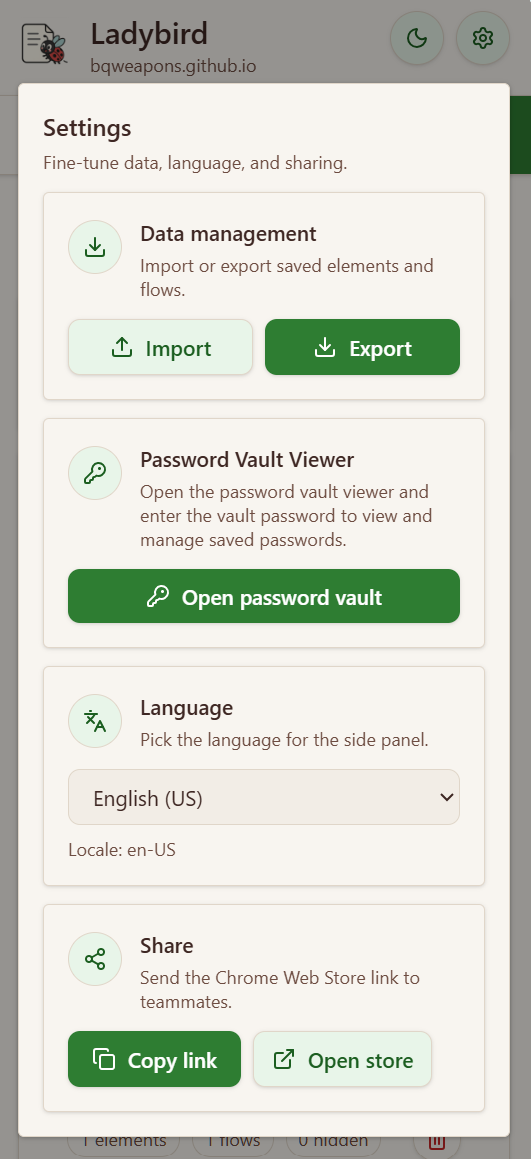
Use the extension side panel so you can see the tabs for Elements, Flows, Hidden, Overview, and Settings while keeping the page visible beside it.
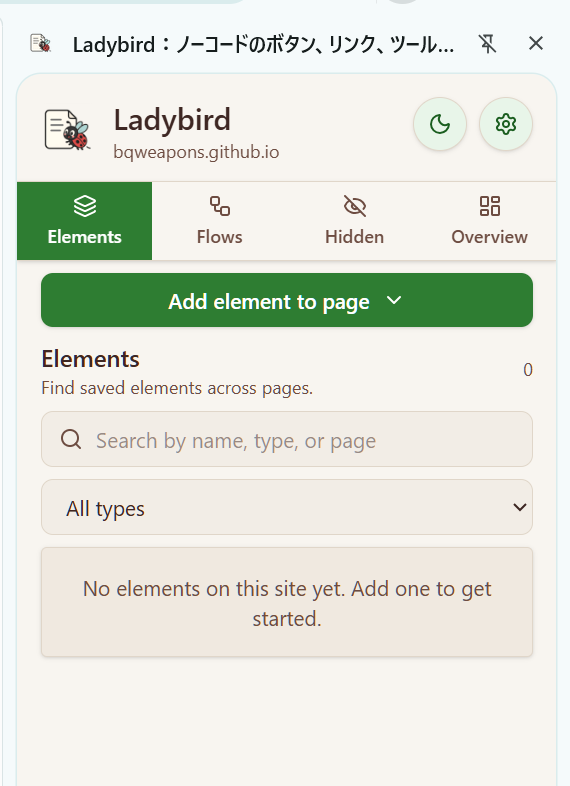
Use Elements for things you want to place on the page, Flows for multi-step actions, and Hidden when you simply want something to disappear.
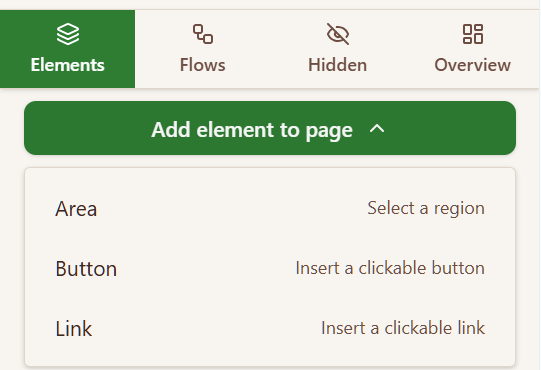
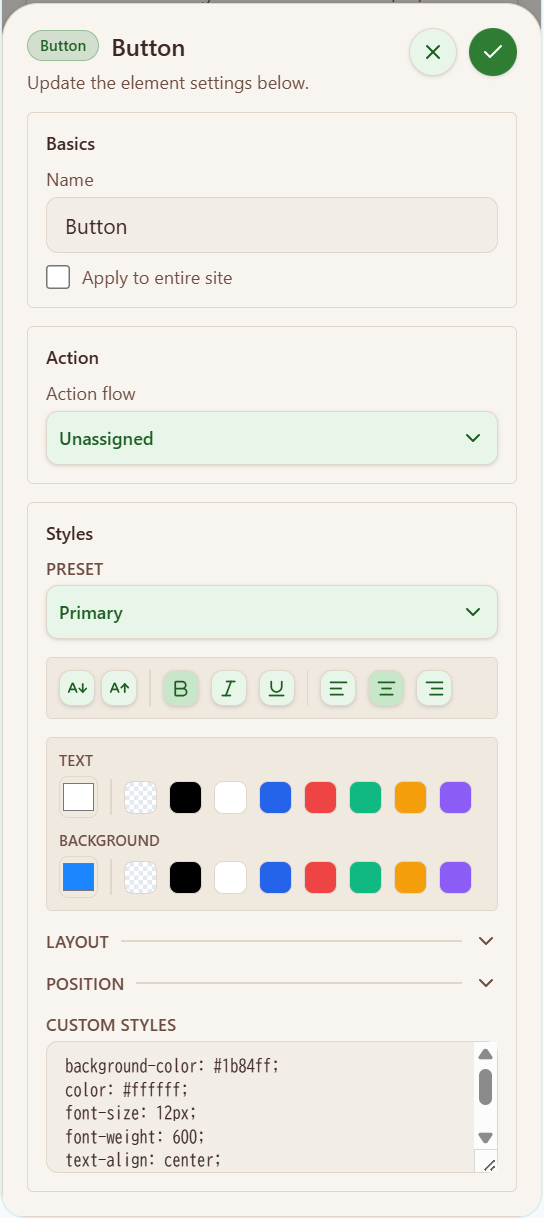
After saving, your new UI should appear on the page, your hidden rule should take effect, or your flow should be ready to run from the list.
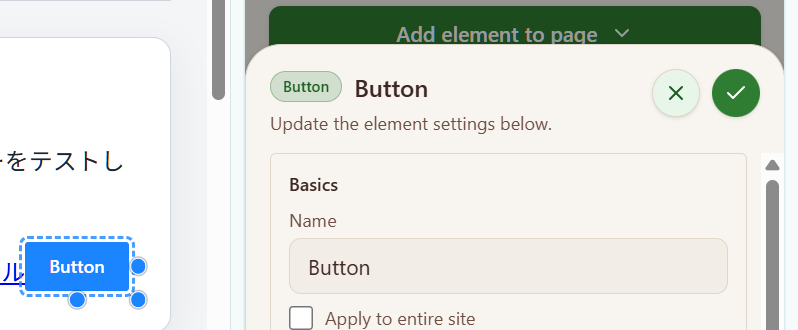
Ladybird is easier to learn when you start with the result you want to see on the page.
Place your own quick actions on top of sites you use often, without rebuilding the site itself.
Save common page actions so you do not have to repeat the same sequence every time.
Remove banners, sidebars, repeated notices, or noisy blocks that get in your way.
Bind saved passwords to flow steps instead of leaving plain text in your automation setup.
Back up your saved sites, carry them to another machine, or send a configuration to teammates.
Start simple. Use one tab for the immediate problem, then combine features only when you need more.
Best when you want a button, link, tooltip, or area to appear exactly where you need it.
Reminder: start with a stable page location so your element is easier to keep working after site updates.
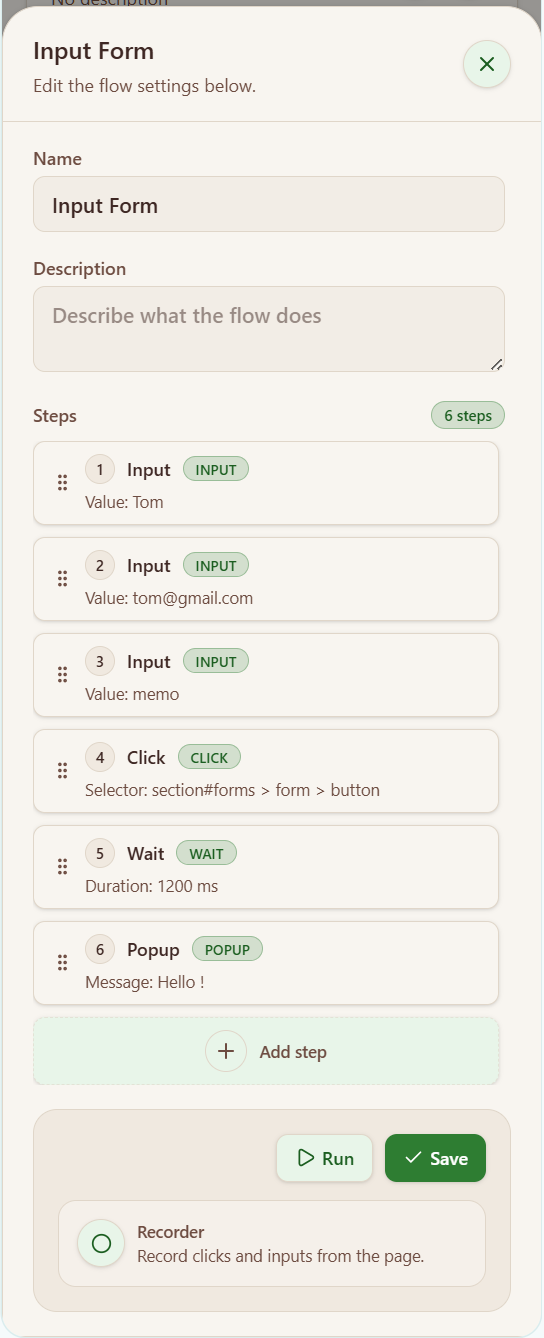
Best for clicks, typing, waiting, branching, confirmations, or multi-step actions that happen often.
Reminder: if a page changes often, flows may need selector updates before they run cleanly again.
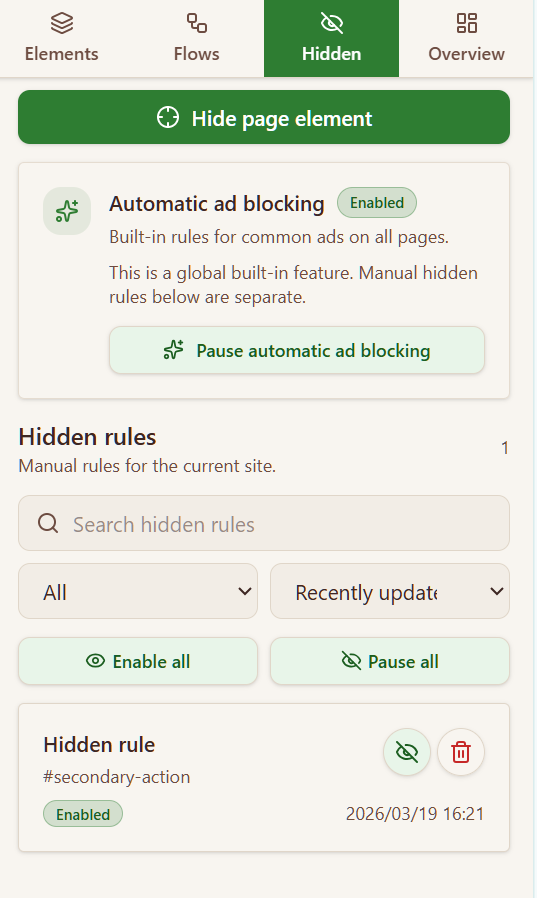
Best for banners, repeated prompts, side sections, and clutter that makes a page harder to use.
Reminder: manual hidden rules belong to a site, while automatic ad blocking is a separate global switch.
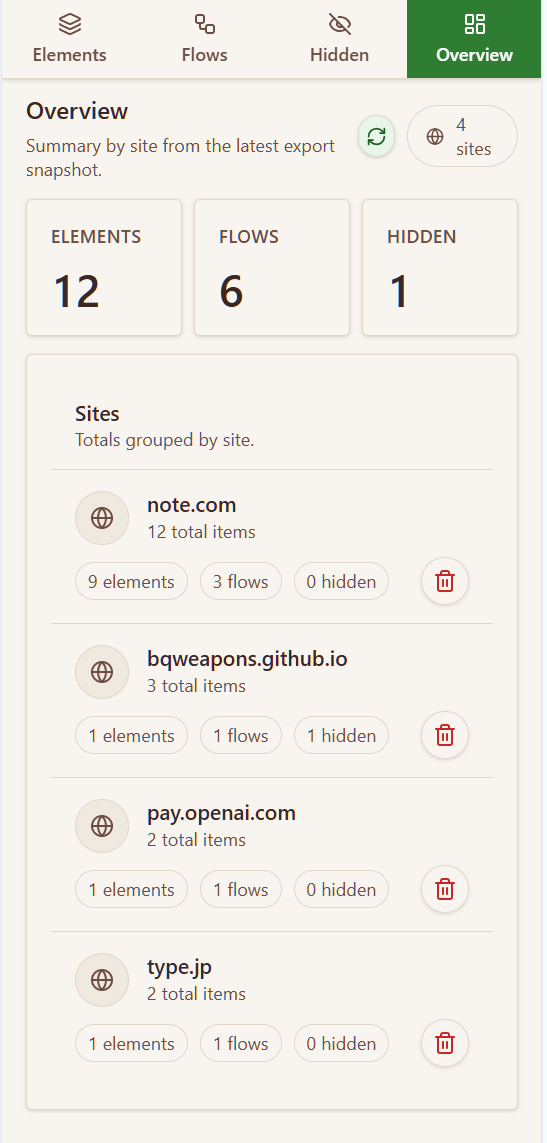
Best when you want a quick inventory before cleanup, export, or troubleshooting.
Reminder: Overview is the fastest place to understand your saved footprint before importing or deleting anything.
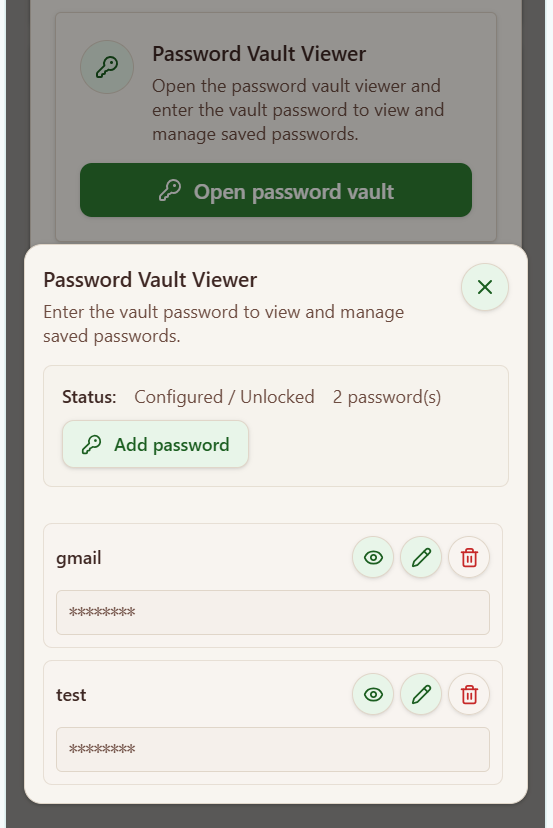
Best for login or secure input steps where you want reuse without exposing the value inside the flow.
Reminder: if you forget the vault password, the stored vault data cannot be recovered and must be reset.
Best when you are moving devices, sharing a setup, or adjusting the side panel language.
Reminder: exported files are your responsibility to store safely, especially if they include vault data.
Each example below follows the same pattern: what hurts now, how Ladybird helps, and what you get back.
You keep opening the same report pages through several clicks inside a busy back-office tool.
Create page buttons or links in Elements so the shortcuts live exactly where you work.
Your most-used destinations become one click away on the page you already have open.
You enter the same fields again and again across a form or a sequence of screens.
Build a flow with click, input, wait, and optional data-source steps so the sequence is reusable.
The routine turns into a saved process that is faster to repeat and easier to standardize.
You want login automation, but keeping a password directly inside the flow is a bad habit.
Save the password once in the Password Vault, then bind that entry to the input step.
You keep the convenience of reuse without leaving the secret as plain text in your flow setup.
The page is technically usable, but banners and repeated blocks make the work area harder to read.
Create a hidden rule for the distracting area and keep automatic ad blocking separate for global use.
You get a calmer page layout that keeps the useful content visible and the noise out of the way.
Ladybird aims to be practical and transparent. The key limits come from websites changing under you, not from hidden cloud processing.
Elements, flows, hidden rules, and related settings are stored locally in the browser unless you export them yourself.
The vault is designed so passwords are not handled like normal plain-text flow values.
If you export configuration, especially with vault data included, you are responsible for keeping that file secure.
Pages with frequent DOM changes, strict CSP policies, or cross-origin iframes may reduce placement or automation reliability.
If the page changes, loads slowly, or the selector is no longer correct, the run may pause, fail, or need updates.
Start with Elements when you want to place something visible on the page. Start with Flows when the real goal is to automate several actions in sequence.
Usually because the page changed, loaded differently, or a saved selector no longer matches the current screen. Running depends on the page being in the expected state.
Ladybird is designed to push password use toward the Password Vault instead, so secrets are handled separately from normal flow text.
Website updates can change structure, labels, or placement. When that happens, the saved target may need to be picked again or edited.
Use Settings to export your data as JSON, then import that file on the other machine. If you also need passwords, include the vault data during export and import it with the correct vault password.
The vault cannot be recovered without that password. You will need to reset the vault and then bind the affected flow steps again.
Use these when you need the public listing, policy details, or a link to share with teammates.
Open these pages if you want a safe place to try elements, hidden rules, flows, and data-source behavior.